Taking a Course
Once you're signed in, taking your assigned training is straightforward.
Launching a course
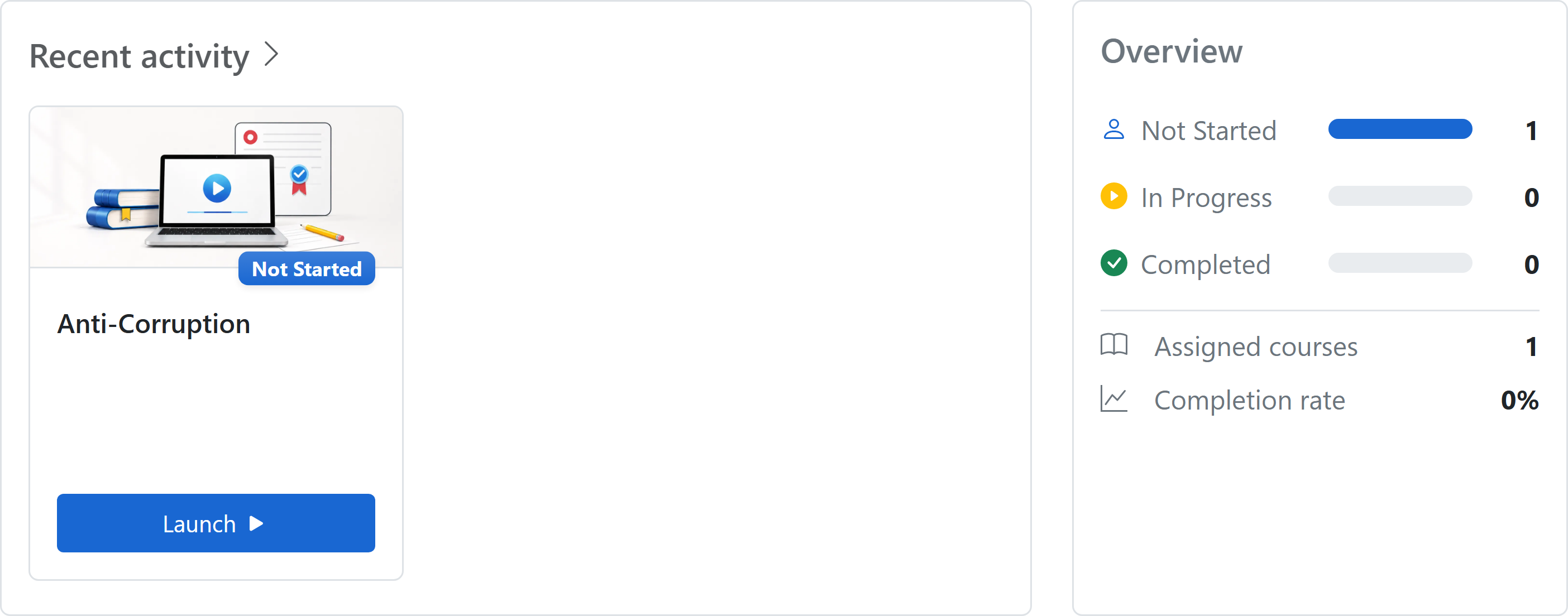
- Sign in and find your assigned course on your home page.
- Select Launch on the course card. It opens in a player that walks you through the content.
- Work through the course to the end. Your progress is saved as you go.
What to expect
- The course tracks your progress automatically — you can usually leave and return where you left off.
- A status of in progress means you've started but not finished. Complete means you've satisfied all the requirements.
- Some courses must be viewed all the way through before they'll mark complete.
Standard Content courses
A Standard Content course opens in a full-window player. The table of contents shows all text, PDF, and video units and your progress through them.
- Select a unit in the table of contents to open it.
- Use Previous and Continue to move between units.
- When shown, select Complete and continue to finish the current unit and move forward.
- Some units complete automatically after you have actively viewed them for the time set by the course author.
- Use the PDF download link when you need to open or save the original file. Videos include the browser's playback and full-screen controls.
The course is complete when every unit is complete. You can leave and return later; completed units and overall progress are saved.
If the course won't load
- Use an up-to-date browser (Edge, Chrome, Firefox, or Safari).
- Allow pop-ups for the site — some courses open in a new window.
- If you're on a corporate network, a firewall may block course content; your IT team can help.
Finished but it still shows incomplete? See Completing Your Training.