API Access
Available APIs
| API | Purpose | OAuth scope |
|---|---|---|
| Training Records API | Read learner assignments, completion results, group information, and optional invitation status. | training.read |
| Users API | Read learners who have training assigned, including registration, last-login, and last-assigned dates. | training.read |
| Groups API | List groups in the client's scope, including supplier numbers and archive status. | training.read |
| Packages API | List training packages and their courses. | training.read |
| Certificates API | List issued certificates and download their PDFs. | training.read |
| Assignments API | Assign learners to a package in batches. | assignments.write |
Access and permissions
Read APIs are limited to the organization or group shown in the API Access breadcrumb. The external system cannot broaden its read scope by sending a different identifier. Assignment requests also require an in-scope package and group, but see the existing-assignment caveat before granting a group client write access.
- Organization administrators, authors, and author administrators can create clients for their currently selected organization.
- Group administrators can create clients for a group they administer.
- When groups pay for their own subscriptions, the group must have an active paid account before API access is available.
The administrator who creates a client remains its owner. If that administrator loses permission to the organization or group, the client stops working. Group credentials also stop working if the group becomes ineligible for API access.
API clients are read-only by default. To let a client assign learners, turn on Assign Users for that client under API Clients. Turning it off stops assignment access, including for existing tokens.
Credentials
Create an API client
- Open API Access for the required scope:
- For the current organization, open the account menu and select API Access under the organization's name.
- For a group, open My Groups, expand the group, and select API Access.
- Select Create API Client.
- Enter a descriptive Name for the external system or environment, then select Create API Client.
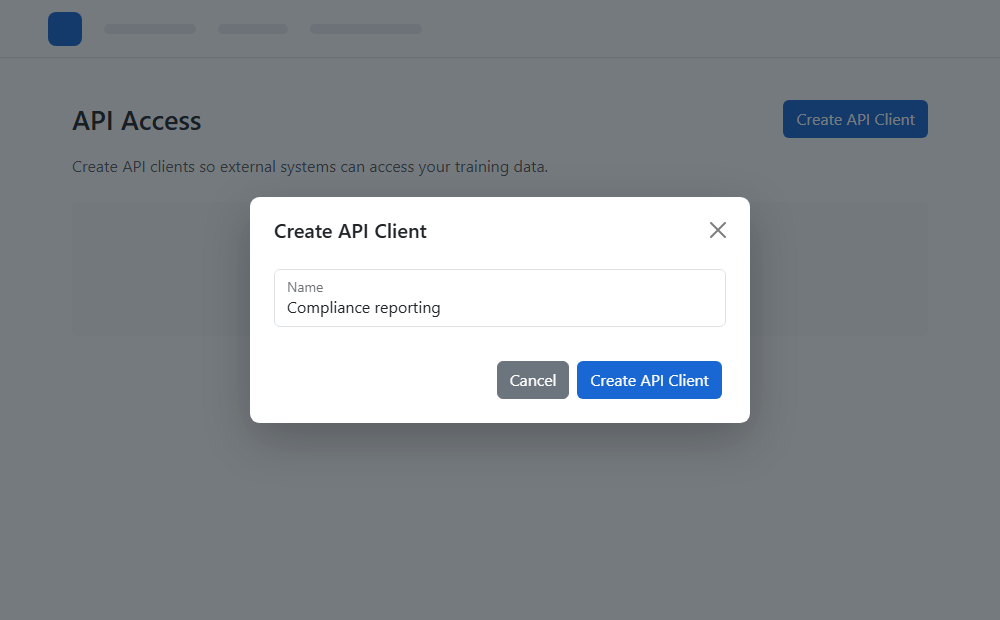
- Copy the Client ID and Client Secret to the external system's secret manager before closing the dialog.
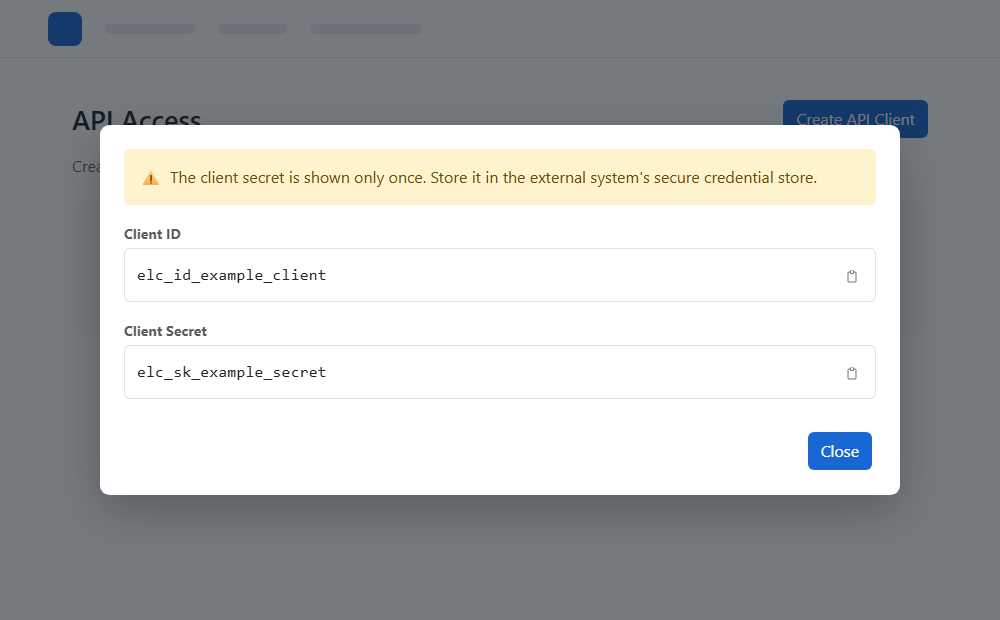
The client secret is shown only once. e-LearningCourses stores a protected representation and cannot display the original secret again. If it is lost, regenerate it.
Manage API clients
Create a separate client for each external system and environment.
Use the Assign Users switch only for clients that need to create learners and assign packages. It is off by default.
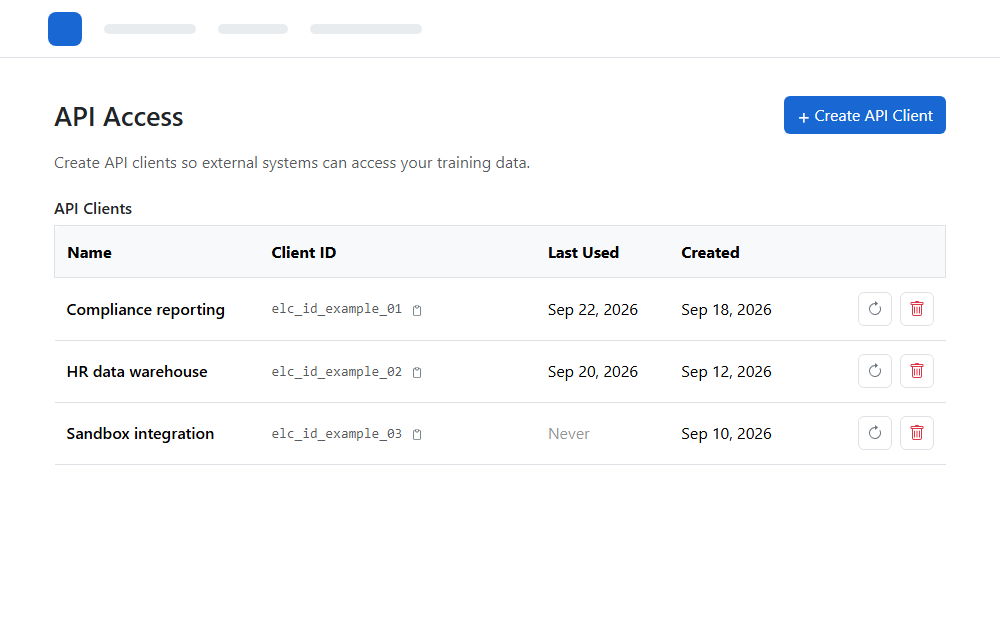
- Regenerate Secret creates a new secret and immediately revokes tokens issued to the previous credential. Update the external system before it requests another token.
- Revoke permanently disables the client and revokes its current tokens. Create a new client if access is needed again.
- Last Used records the last successful token issuance, not every API request.
See Authentication to exchange these credentials for an access token.