Sender Email
Send training emails from your own address, such as training@yourcompany.com, instead of ours. Learners recognize who the email is from, and their replies come straight to you.
Your address is used for assignment and welcome emails, reminders, completion and certificate emails, and messages you send to users. Sign-in codes and password reset emails still come from us.
Who can set it
- Organization administrators set a sender for the whole organization.
- Group administrators of a paid group can set a sender for their group. It's used for that group's learners and admins instead of the organization's sender.
Set up your sender email
- Open Sender Email:
- For your organization: open the top-right menu, select Settings under your organization's name, and click Sender Email.
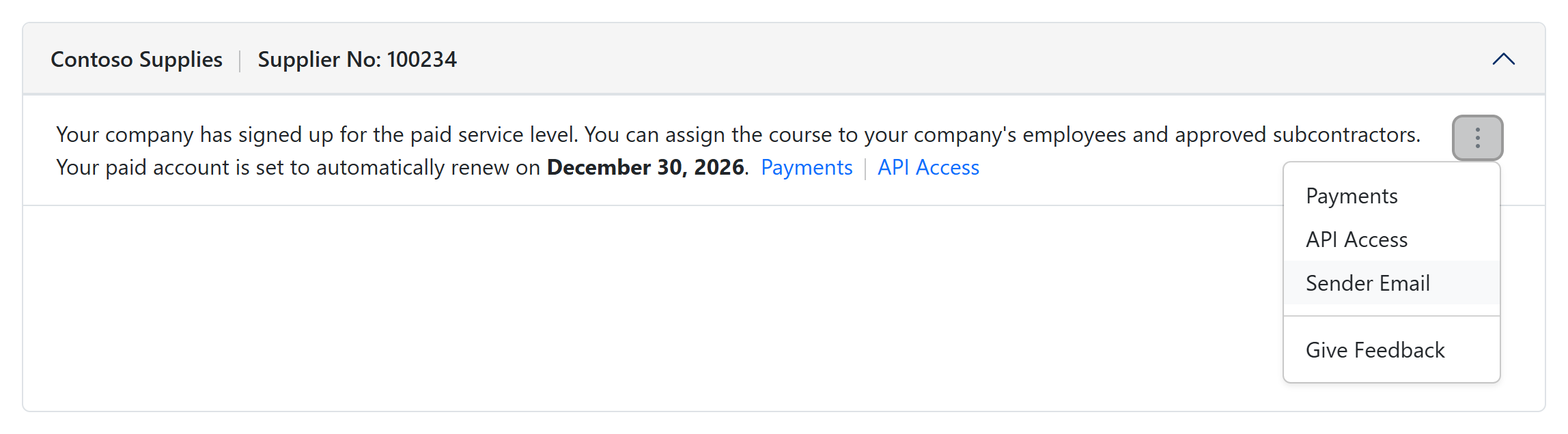
- For a group: open My Groups, click the ⋮ button at the top right of the group, and select Sender Email.
- Enter the Sender full name your learners will see, and the Sender email. Use a real mailbox on your company's own domain, since replies go to it. Free addresses such as Gmail or Outlook can't be used.
- Click Verify. The dialog shows the DNS records your domain needs.
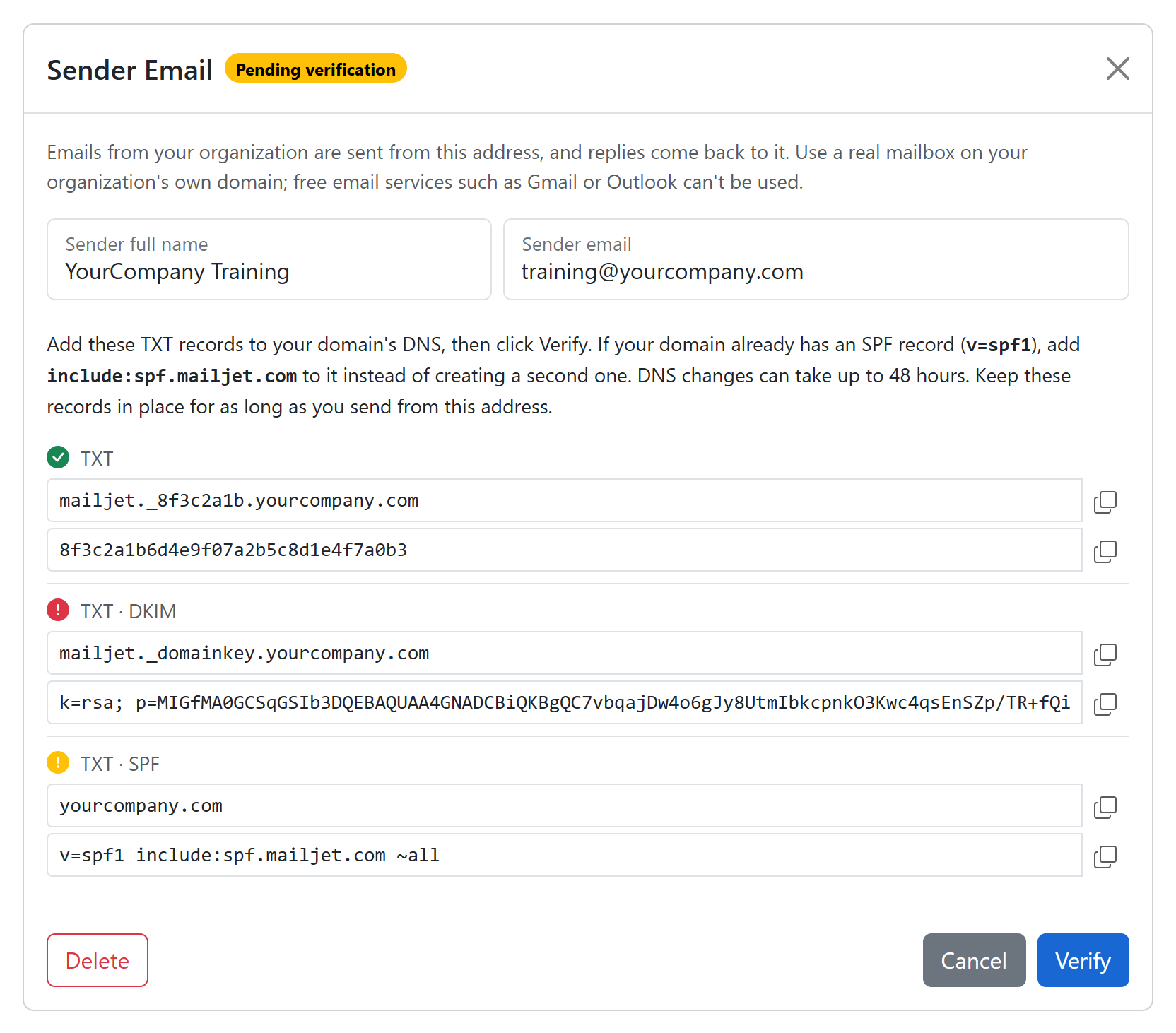
- Add each record to your domain's DNS as a TXT record. Use the copy buttons next to each name and value. If you don't manage your domain yourself, send these records to your IT team.
- Open Sender Email again and click Verify. Once every record shows a green check, the status changes to Verified and your emails start going out from your address.
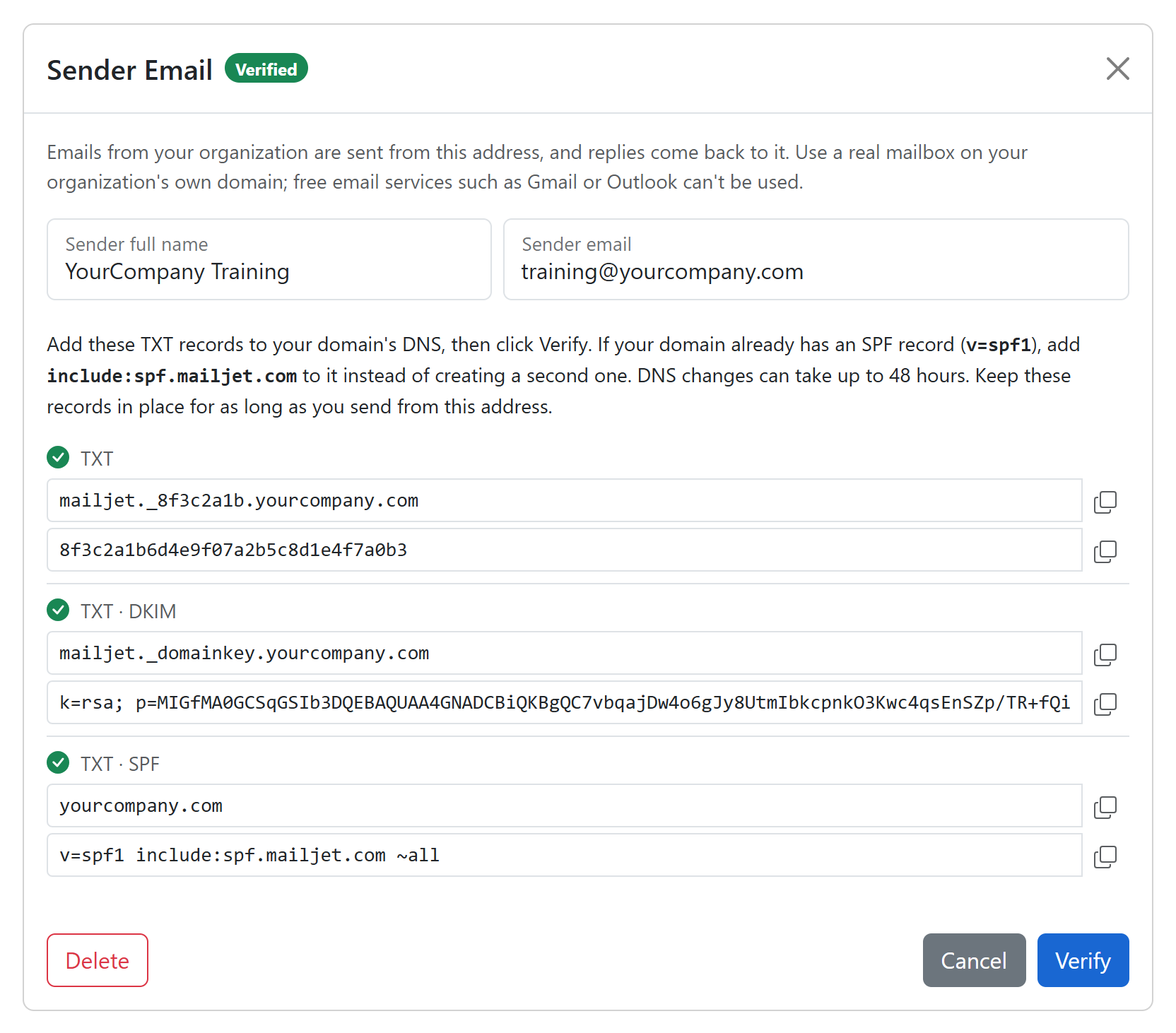
Until your address is verified, emails keep coming from the current sender, so nothing stops while you wait for DNS.
New DNS records can take up to 48 hours to appear. If a record still shows a red mark, wait a while and click Verify again.
Your domain can only have one record that starts with v=spf1. If you already have one, add include:spf.mailjet.com to it instead of creating a second record.
Some DNS providers add your domain to the end of every record name automatically. If you paste mailjet._domainkey.yourcompany.com, the record ends up at mailjet._domainkey.yourcompany.com.yourcompany.com and verification keeps failing. With these providers, enter only the part before your domain, for example mailjet._domainkey.
Avoid the spam folder
If your domain doesn't have a DMARC record yet, add one more TXT record. Gmail and Yahoo expect it from every sender:
- Name:
_dmarc - Value:
v=DMARC1; p=none;
Keep all the records in place for as long as you send from this address. If they're removed, your emails start landing in spam.
Change or remove your sender
Open Sender Email to make a change:
- To change the address, enter the new one and click Verify. Your current address keeps sending until the new one is verified.
- To stop using your address, click Delete. A group's emails go back to the organization's sender, and an organization's emails go back to ours.