Reports page
Select Reports in the top menu to find every report in one place.
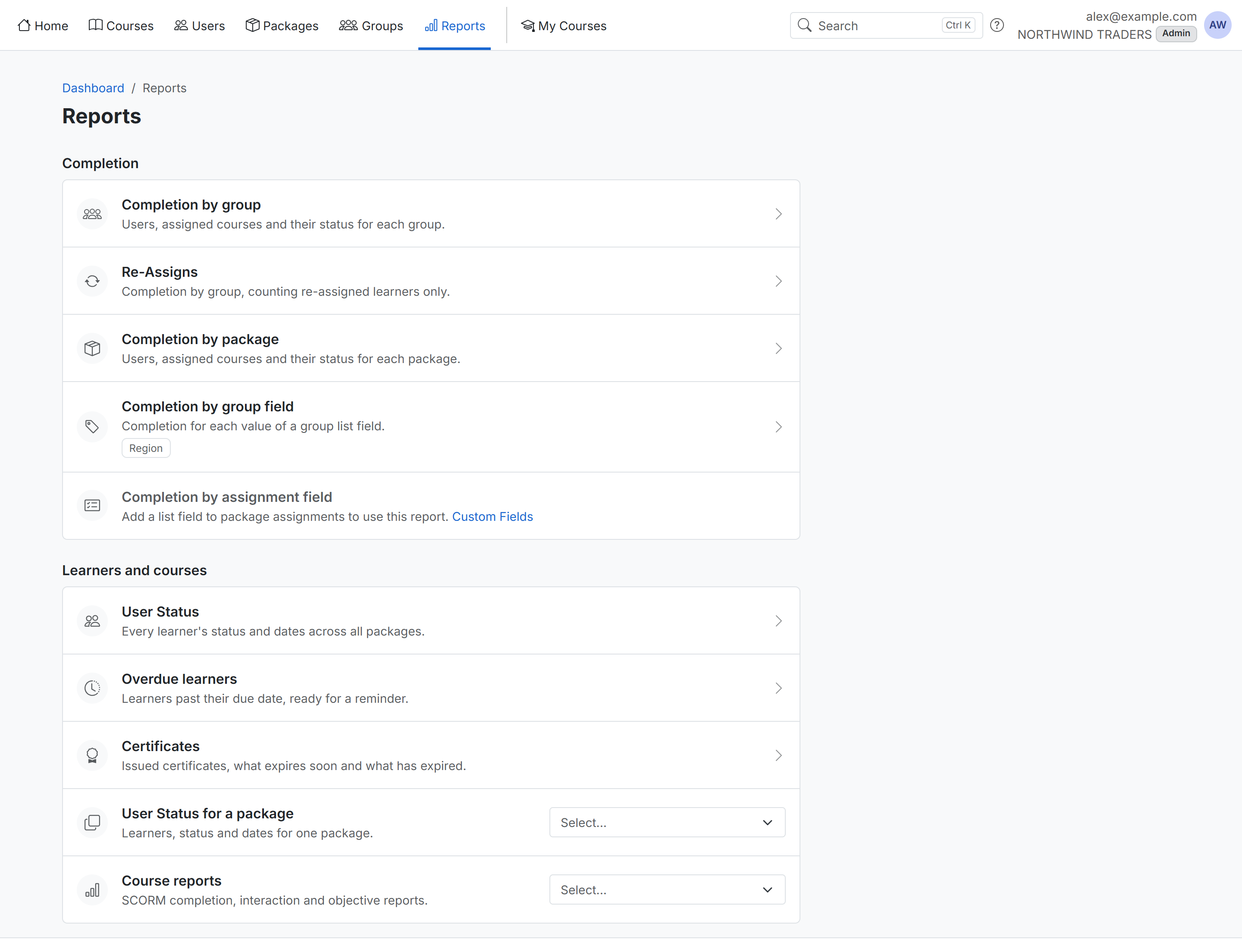
Completion compares completion across your organization:
- Completion by group: users, assigned courses and their status for each group. See Completion by group.
- Re-Assigns: completion by group, counting only learners who were re-assigned.
- Completion by package: the same counts for each package.
- Completion by group field: completion for each value of a group list custom field, such as a region. Your group list fields show under it.
- Completion by assignment field: completion for each value of a package assignment list field.
The two field reports need a List custom field first. Until you have one, their row links to Custom Fields.
Learners and courses lists individual learners:
- User Status: every learner's status and dates across all packages. See User Status for all packages.
- Overdue learners: learners past their due date, ready for a reminder. See Overdue learners.
- Certificates: issued certificates, what expires soon and what has expired. See Certificates.
- User Status for a package: pick a package to open its User Status. Type to find it in a long list.
- Course reports: pick a course to open its SCORM completion, interaction and objective reports.
In the Group Admin role, the page covers the groups you manage, and the field and course reports are hidden.
Completion by group
Completion by group shows one row per group with its Users, Assigned courses, and how many are Not Started, Incomplete, Completed and Passed, plus a Completion rate. The Total row adds up the rows shown.
If your groups have list custom fields, such as a region, each one gets its own column after Supplier Number.
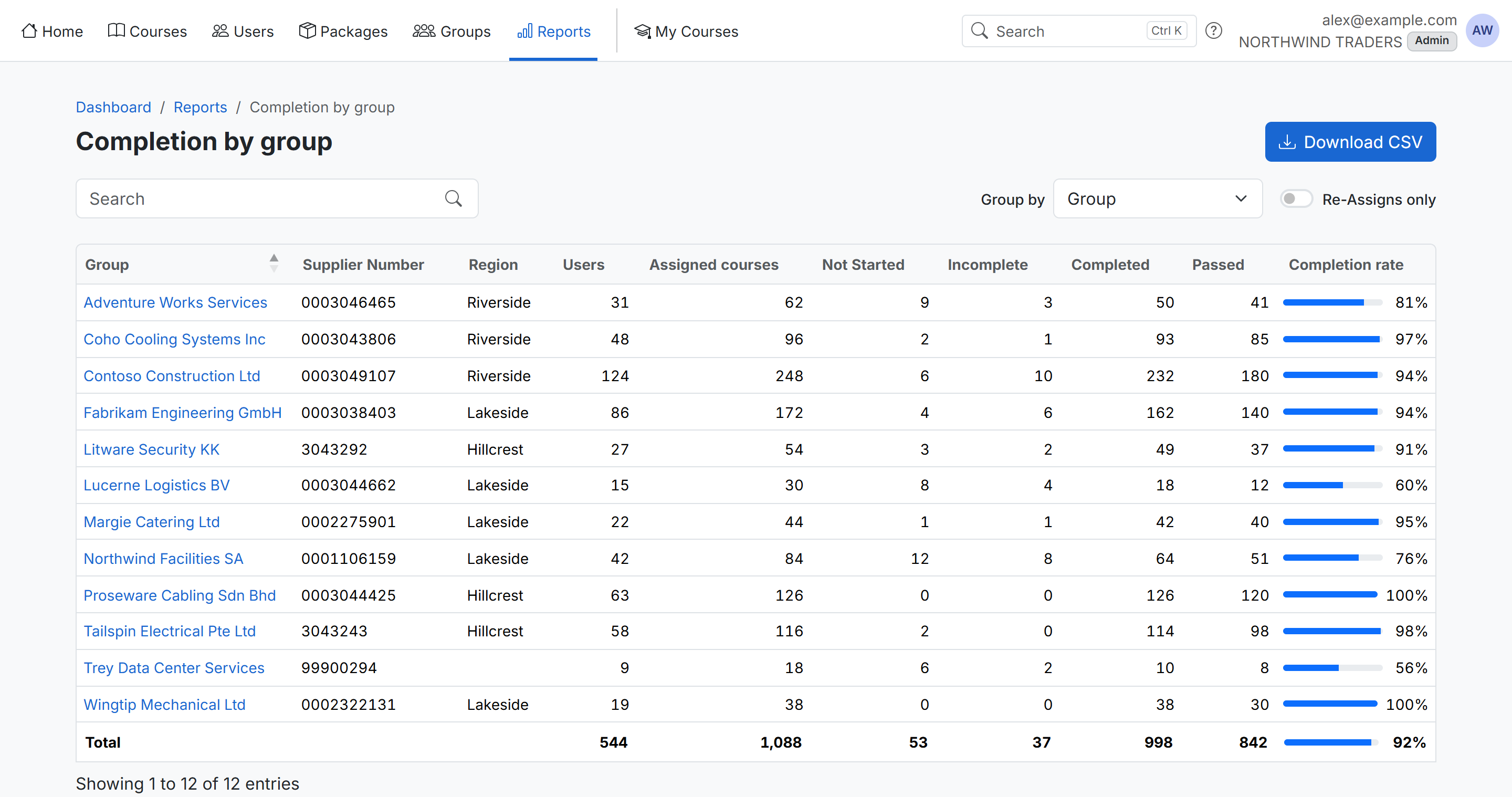
- Search matches group names, supplier numbers and custom field values. Search for a region, such as Lakeside, to see only its groups, with a total for that region.
- Click a column header to sort. Groups with no value sort last.
- Group by switches the report to packages or to one of your list fields. Grouping by a field gives one row per value, such as one per region.
- Re-Assigns only counts only learners who were re-assigned.
- Download CSV downloads every row that matches your search, with the same columns.
- Click a group's name to open it.
Overdue learners
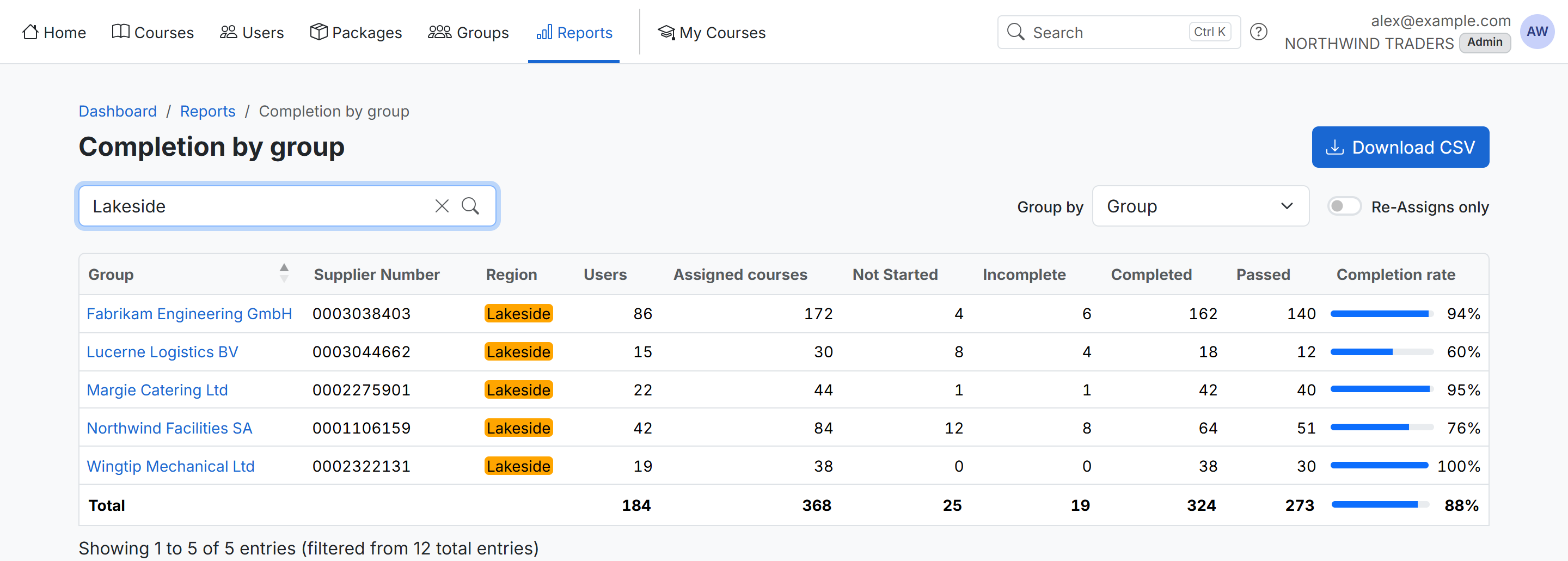
Overdue learners opens User Status for all packages filtered to the courses past their due date and still not completed, grouped by course. Each row shows the learner, their group and supplier number, the status, and when the course was assigned and started.
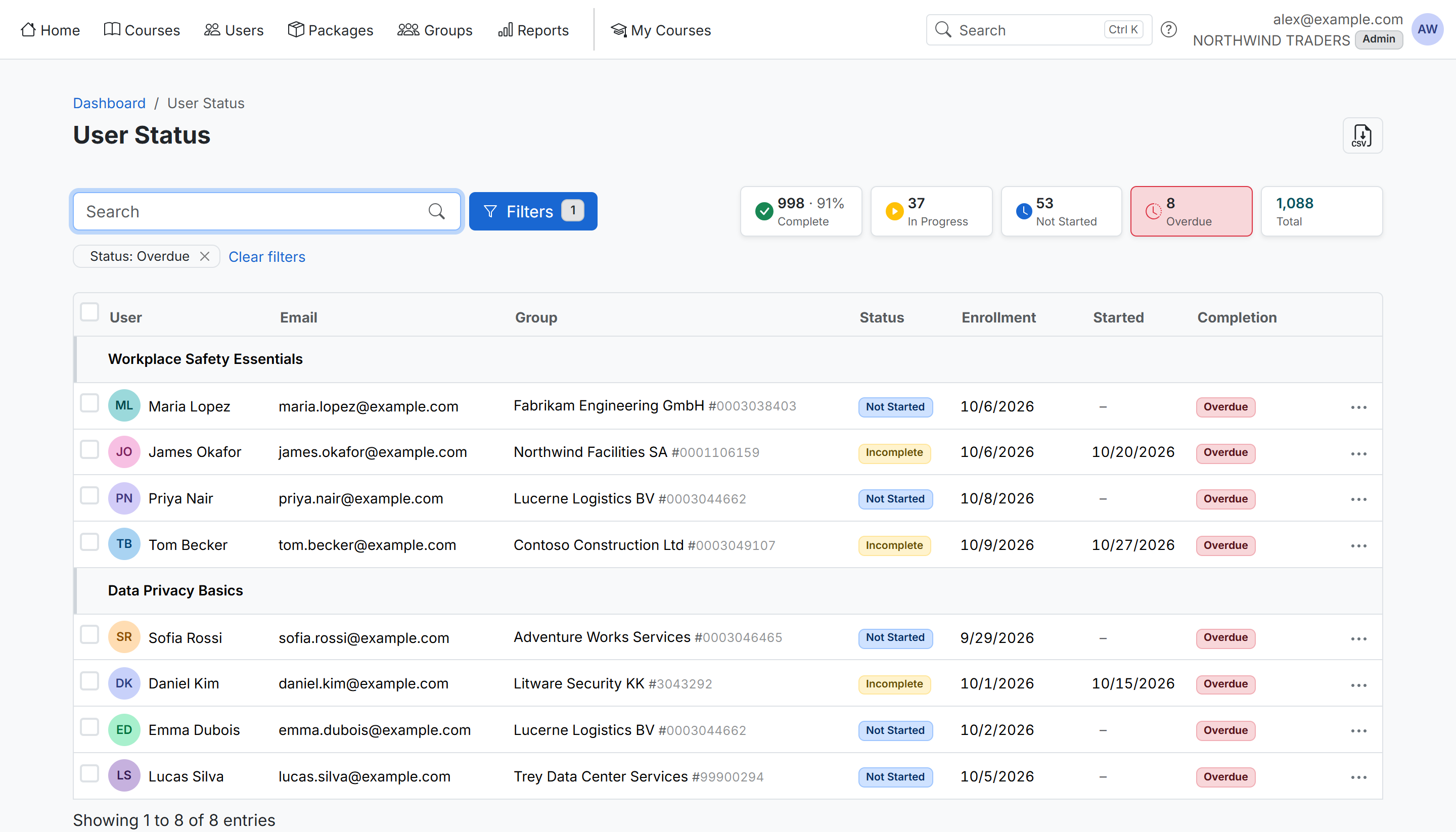
Select learners and click Send message to send them a reminder; see Send message from User Status. Remove the Status: Overdue filter to see everyone again.
Certificates
Certificates lists every certificate issued to your learners, newest first, with its number, learner, course, package, group, issue date and expiration date.
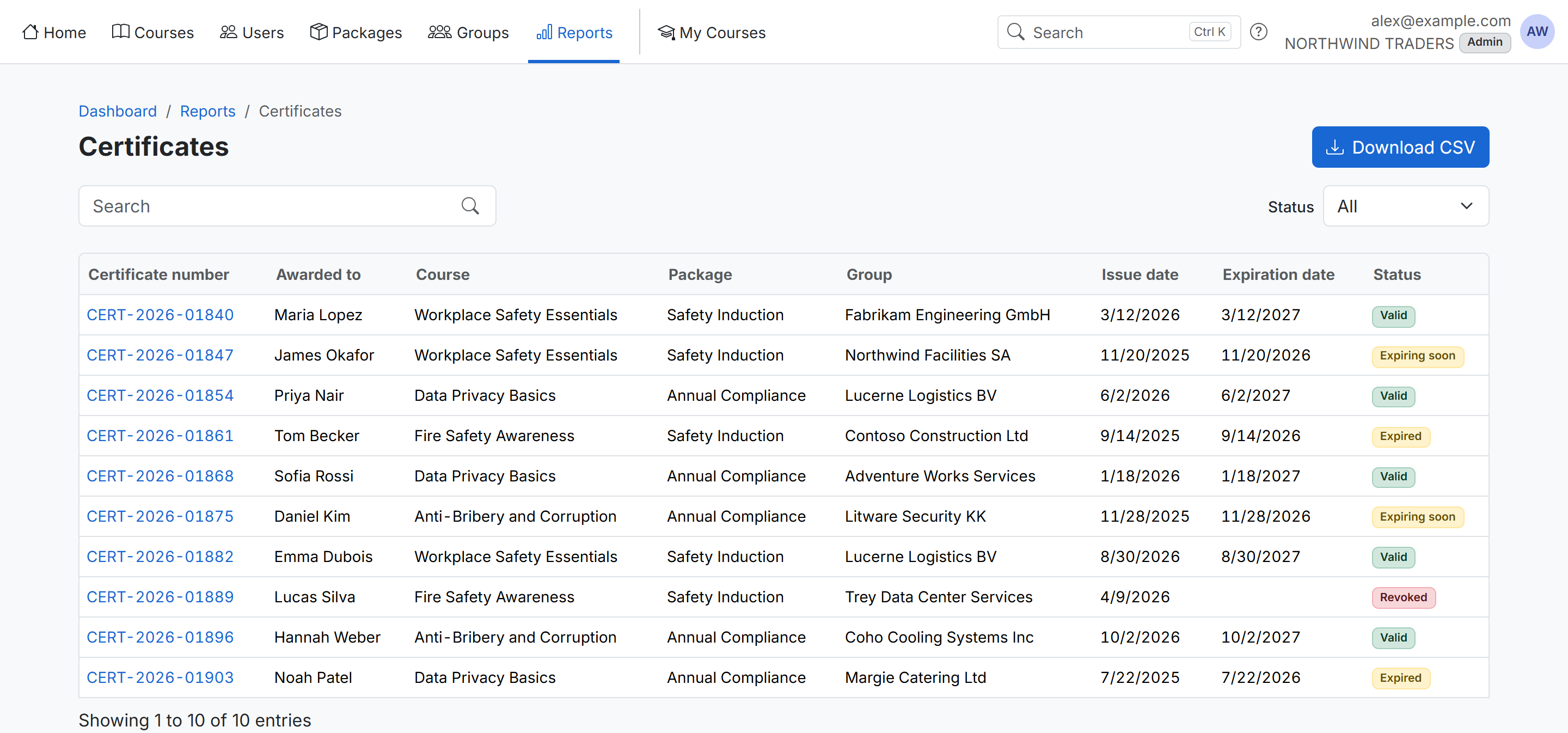
- Status shows Valid, Expiring soon (expires within 60 days), Expired or Revoked certificates.
- Search matches the learner, course, package, group or certificate number.
- Click a certificate number to open its public verification page.
- Download CSV downloads the certificates that match your status and search.