Status reports
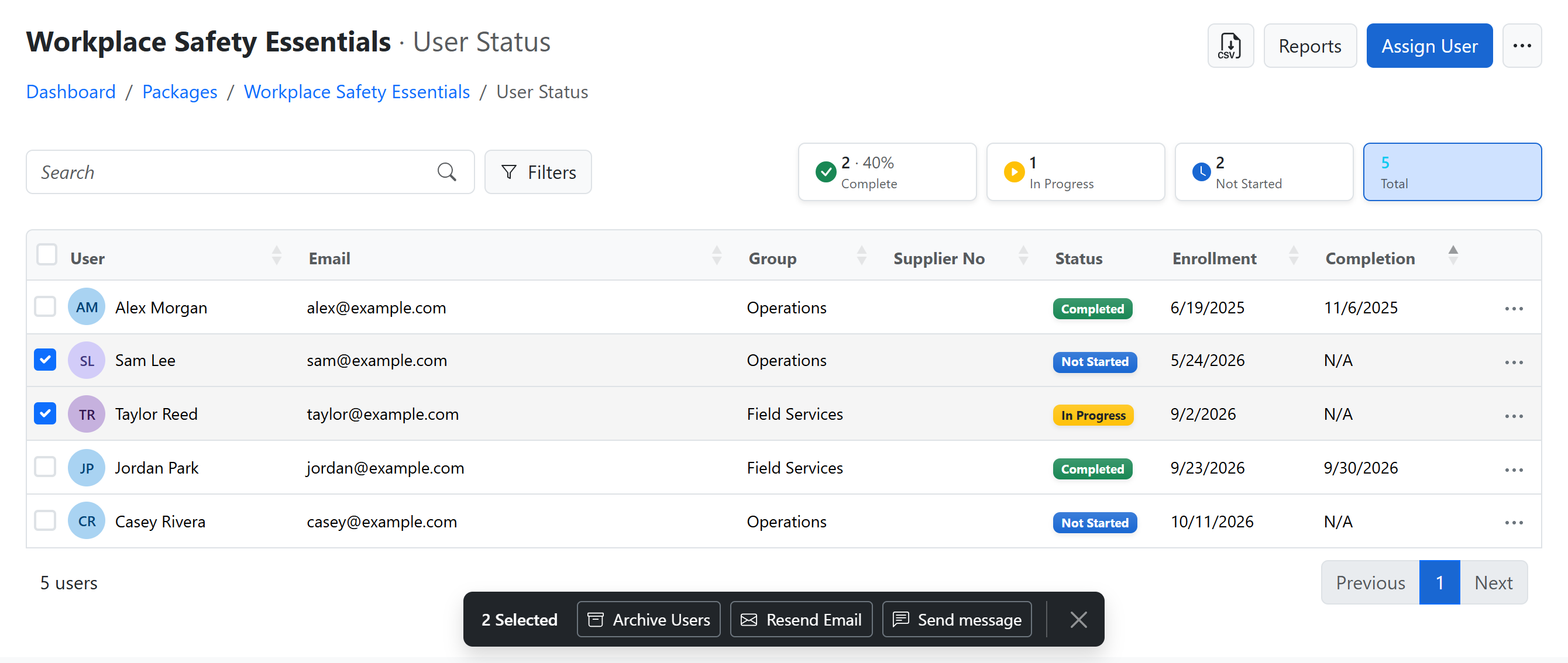
The User Status report for a package lists everyone assigned to it, with their assignment date, completion date, and assignment type. Sort it by email, name, assignment date, or completion date, search it, filter it, and download it as a CSV when you need it outside the platform.
Click Filters to narrow the list:
- Enrollment From / To: courses assigned in those dates.
- Date Started / To: courses started in those dates.
- Completion From / To: courses completed in those dates.
- Complete by Date / To: courses due in those dates. While this filter is set, a Complete by Date column shows each course's due date. It appears only when the report has due dates.
- Status: tick one or more of Not Started, Incomplete, Completed, Passed and Failed. The list shows courses with any of the ticked statuses.
- Show archived: shows archived training instead of active training. See Archived training.
You can combine the date filters, for example courses assigned in January and completed in March. Each filter shows as a label above the list. Click its × to remove it, or Clear filters to remove them all.
The cards above the list count each status. Click a card to filter by it, or Overdue to list the courses past their due date.
The CSV button offers two downloads:
- All Users: everyone assigned, whatever the search and filters.
- Current View: only the rows shown, with your search and filters applied.
Archived training
User Status shows active training only. Training of archived users, and training in archived packages and courses, is hidden.
To see it, click Filters and tick Show archived:
- Archived users' training is listed as usual. Select rows and click Unarchive in the action bar to bring those users back.
- Training in an archived package or course is shown muted, with an archive icon next to its status. These rows can't be selected; unarchive the package or course on the Packages or Courses page.
To see all the training of one archived package or course, set the Packages or Courses list to Archived and click User Status on its row. Its title is marked Archived.
User Status for all packages
To see every package in one list, open User Status from:
- the dashboard: click a Completion Totals bar, or Assigned courses or Overdue in Overview
- Packages: open the menu next to Reports and select User Status
- Users: click User Status
In the Administrator role, you see the whole organization. In the Group admin role, you see the groups you administer.
The rows are grouped by course, and the search, filters, cards and row actions work as in a package's User Status. The CSV button offers Current View only. To download everyone in one package, open that package's User Status.
Send message from User Status
Send an email directly from the User Status report:
- One learner: open the … menu at the right of their row and select Send message.
- Several learners: tick their row checkboxes, then click Send message in the action bar at the bottom of the page. Your selection is kept when you move between pages.
You can message up to 300 distinct learners at a time. Selecting several course rows for the same learner sends them only one message.
- Enter a required Subject and write your Message.
- Select Send. The panel shows a Sent count. Replies go to your email address.