Certificados
Qualquer curso pode emitir automaticamente um certificado em PDF no momento em que o aluno o conclui. A opção de certificado fica na aba Configurações do curso, logo abaixo de Descrição.
Ativando um certificado
Abra a aba Configurações do curso e use a lista suspensa Certificado para escolher um dos três modelos fixos — Clássico, Moderno ou Minimalista. Escolher Nenhum (o padrão) significa que nenhum certificado é emitido para este curso.
As configurações do certificado são salvas junto com o restante do curso — não há um botão de salvar separado. Basta preencher a lista suspensa e a duração e clicar em Salvar normalmente.
Ativar um certificado afeta apenas as conclusões a partir desse momento. Alunos que concluíram o curso antes da ativação não recebem automaticamente um certificado por essa conclusão anterior.
Os três modelos
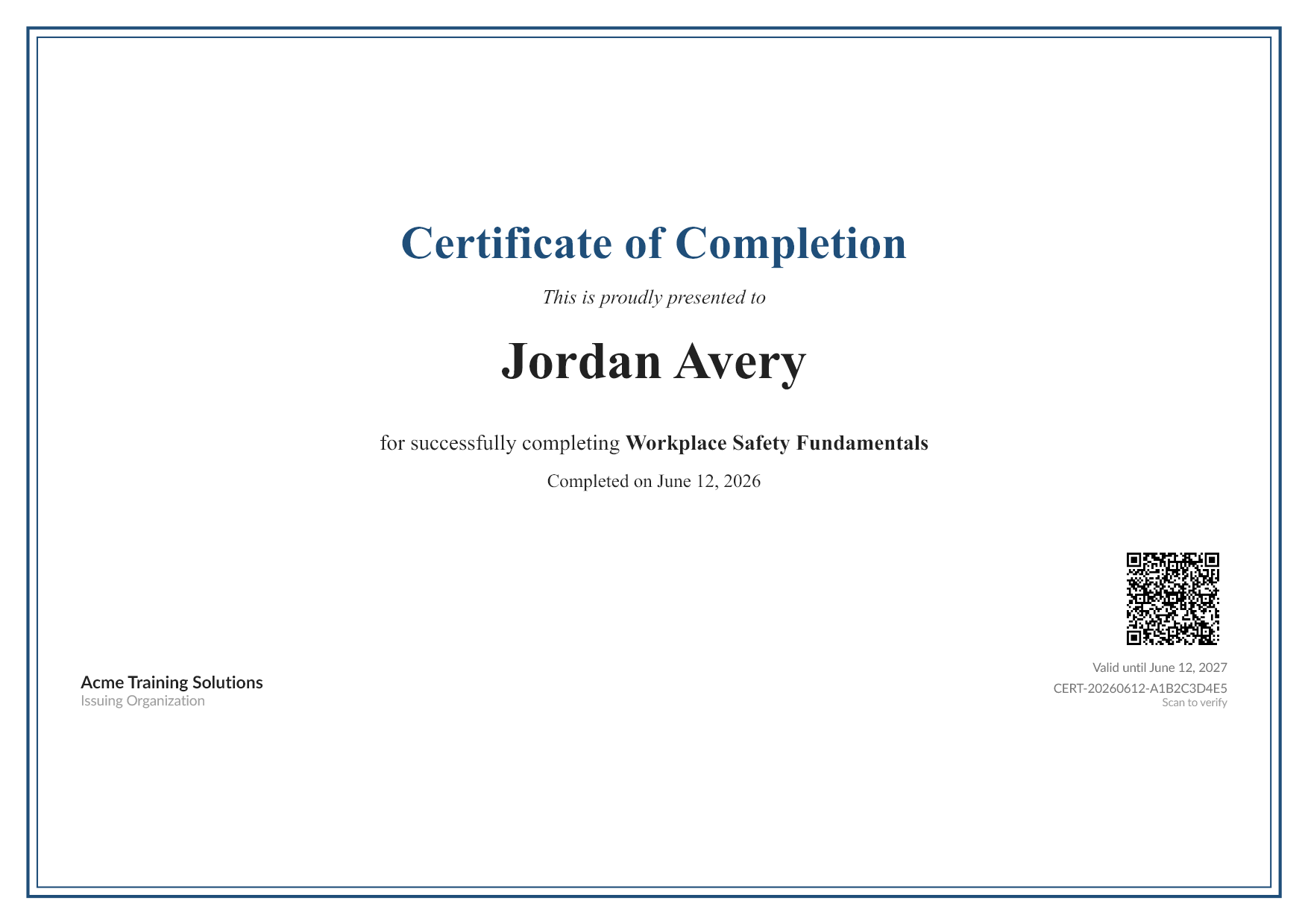
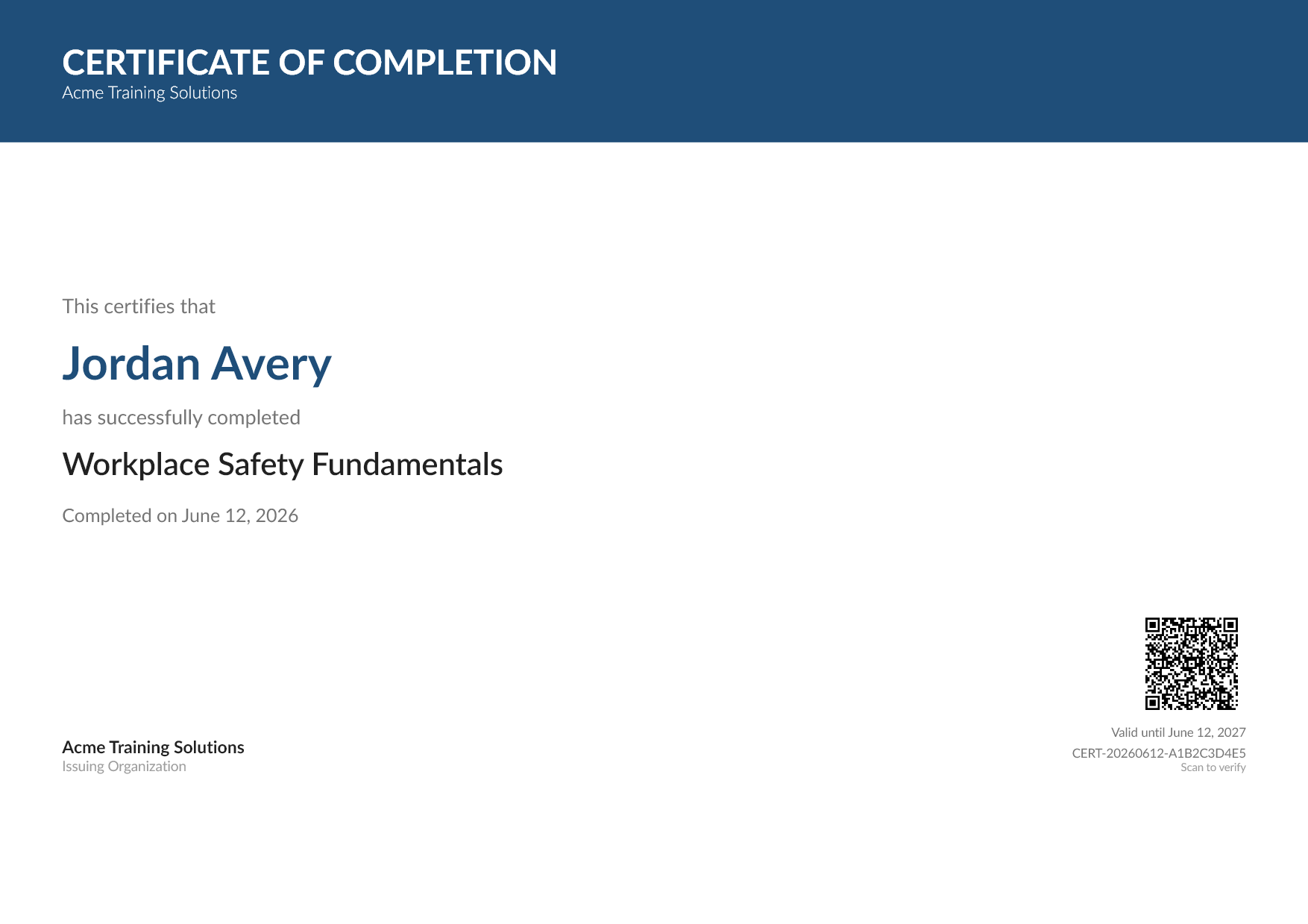
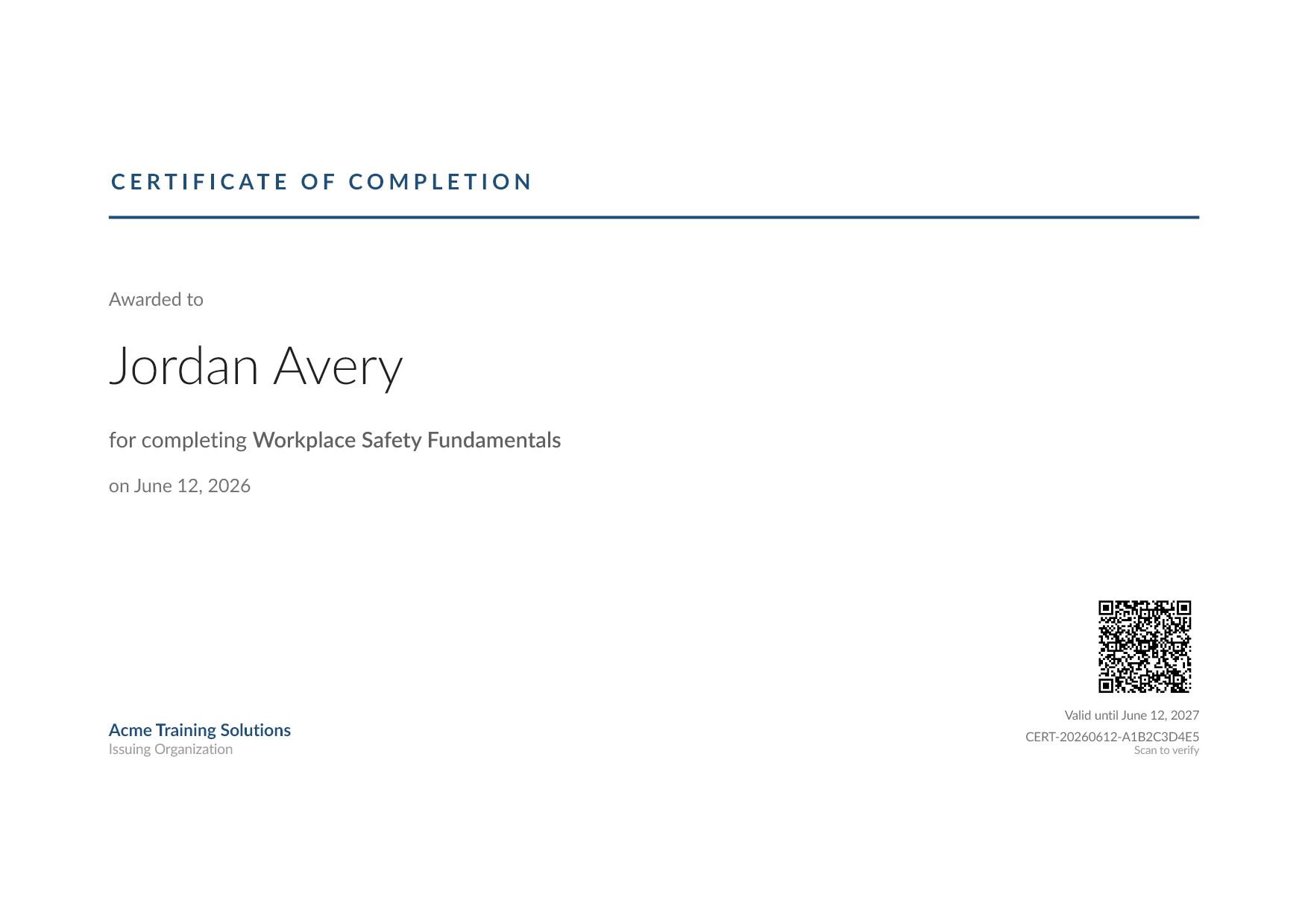
Cada modelo é um design fixo e pronto para uso. Todo certificado inclui o nome do aluno, o nome do curso, o nome da sua organização, a data de conclusão, um número de certificado único e um QR code que o aluno (ou qualquer pessoa a quem ele o mostre) pode escanear para verificá-lo.
Clássico
Um layout tradicional com borda e fonte serifada — o visual que a maioria das pessoas associa a um certificado impresso.
Moderno
Uma faixa colorida em destaque no topo, com uma fonte sem serifa limpa abaixo.
Minimalista
Um layout discreto, baseado em espaço em branco, com uma única linha fina — sóbrio e moderno.
Visualizando um modelo
Quando um modelo diferente de Nenhum está selecionado, um link Visualizar aparece ao lado da lista suspensa. Ele abre um PDF de exemplo — com nomes fictícios de aluno e curso — em uma nova aba, para que você veja exatamente o que os alunos vão receber. A visualização nunca é salva e não conta como certificado emitido.
Duração do certificado
Use Duração do certificado para definir por quantos dias um certificado permanece válido após a emissão, para treinamentos que exigem renovação periódica.
- Deixe em branco (ou
0) e o certificado nunca expira. - Informe um número de dias e a data de expiração do certificado será definida para essa quantidade de dias após a emissão. Depois dessa data, o certificado aparece como Expirado onde quer que seja exibido — o aluno continua com o PDF, mas ele fica marcado como não vigente.
Como e quando é emitido
O certificado é emitido automaticamente no momento em que o aluno conclui (e, se o curso tiver uma avaliação de aprovação/reprovação, é aprovado) o curso — o aluno não precisa clicar em nada. Logo em seguida, ele recebe um e-mail com um link para visualizá-lo, e o certificado também fica disponível na página Meus certificados. Veja Meus certificados para saber o que o aluno vê.
Cada aluno recebe exatamente um certificado por curso (por contexto de pacote/grupo, se o curso for oferecido por mais de um). Concluir novamente um curso que permite repetição não gera um certificado duplicado.
Se este curso for vendido ou atribuído por meio de um pacote, o administrador de um grupo de clientes pode substituir sua escolha de certificado para o próprio grupo — por exemplo, desativá-lo para o grupo dele mesmo que esteja ativado para todos os outros, ou usar um modelo diferente. Veja Substituições de certificado.
Verificação pública
Todo certificado emitido pode ser verificado sem login. Escanear o QR code, ou abrir o link de verificação impresso no certificado, exibe uma página simples com o nome do aluno, o nome do curso, a organização, a data de emissão, a data de expiração, o número do certificado e um selo de status (Válido, Expirado ou Revogado). Endereços de e-mail e dados internos da conta nunca são exibidos nessa página — é seguro compartilhá-la com um empregador ou auditor que precise confirmar a autenticidade de um certificado.