Standard Content Courses
Standard Content lets you build a course directly in the platform from one or more text pages, PDF files, and MP4 videos. It uses the same packages, assignments, completion records, reports, and certificates as other courses.
Create a course
- Open Courses.
- Select Add Course, then Standard Content.
- Enter the course name and configure its settings.
- Select Create. The content editor opens automatically.
You can return to the editor later from the course's Content tab.
Add and edit content
Select Add Content, then choose a unit type:
- Text — Enter a title and format the page in the rich-text editor.
- PDF — Enter a title, choose a PDF file, and select Upload.
- Video — Enter a title, choose an MP4 file, and select Upload.
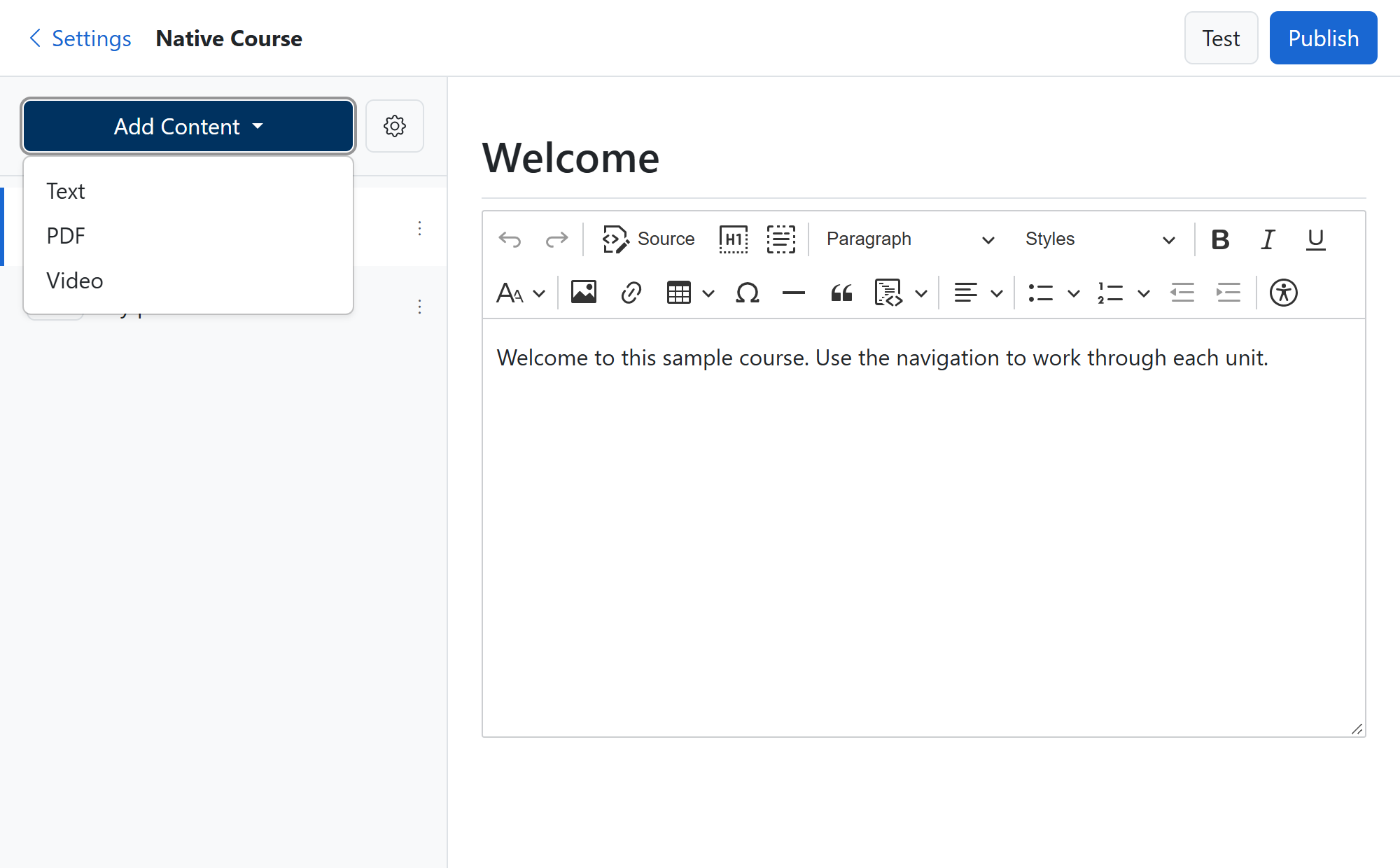
Each new unit appears in the list on the left. Select a unit to edit it. Titles and text are saved automatically; if saving fails, the editor displays an error.
For an uploaded PDF or video, use Download to open the source file or Replace to upload a newer file for the same unit.
PDF files may be up to 100 MB. MP4 videos may be up to 2 GB.
Organize units
Open the ... menu beside a unit to:
- Move it up or down in the course.
- Open its completion settings.
- Delete it.
The order shown in the editor is the order displayed in the course player.
Set page ordering and course completion
Select the Course settings gear beside Add Content, configure the options, and then select Save.
Under Page ordering, choose:
- Any order — Learners can open any page from the table of contents.
- Sequential order — Learners must complete each preceding page before opening a later page. Locked pages display a lock icon; pointing to, focusing, or tapping a locked page displays Complete previous pages first. Completed pages remain available, and all pages become available for review after the course is complete.
Under Completion rule, choose:
- All pages must be completed — The course completes after every page is complete.
- A percentage of pages must be completed — The course completes when the required share of pages is complete. Enter a whole-number Completion percentage from 1% to 99%. For example, an 80% rule requires four completed pages in a five-page course.
New and existing Standard Content courses default to Any order and All pages must be completed. The percentage defaults to 80% when percentage completion is selected. The learner player always shows the actual number of completed pages, including when a percentage rule completes the course before every page is finished.
Changes apply immediately to learners who have not completed the course. Learners who already completed it remain complete. Select Cancel to close the panel without applying changes.
Set a default completion deadline
In Course settings, enter a whole number in Days to Complete to provide a default deadline when this course is added to a standard package. Leave the field blank if the course should not provide a default.
The value is copied to the package's Courses tab when you add the course. Changing the course default later does not update packages that already contain the course. You can adjust or remove the deadline separately for each package from its Courses tab.
For assigned learners, the deadline is calculated from the assignment date. The learner can open the course through the displayed Complete by Date. If the course is still incomplete after that date, it is marked Overdue and cannot be opened until the package deadline is extended or removed. Learners who completed the course retain review access.
Set unit completion
Open the unit's ... menu and select Settings. Under Complete, choose how the learner completes that unit:
- With a button — The learner selects Complete and continue.
- After a period of time — The unit completes automatically after the learner has actively viewed it for the specified number of seconds.
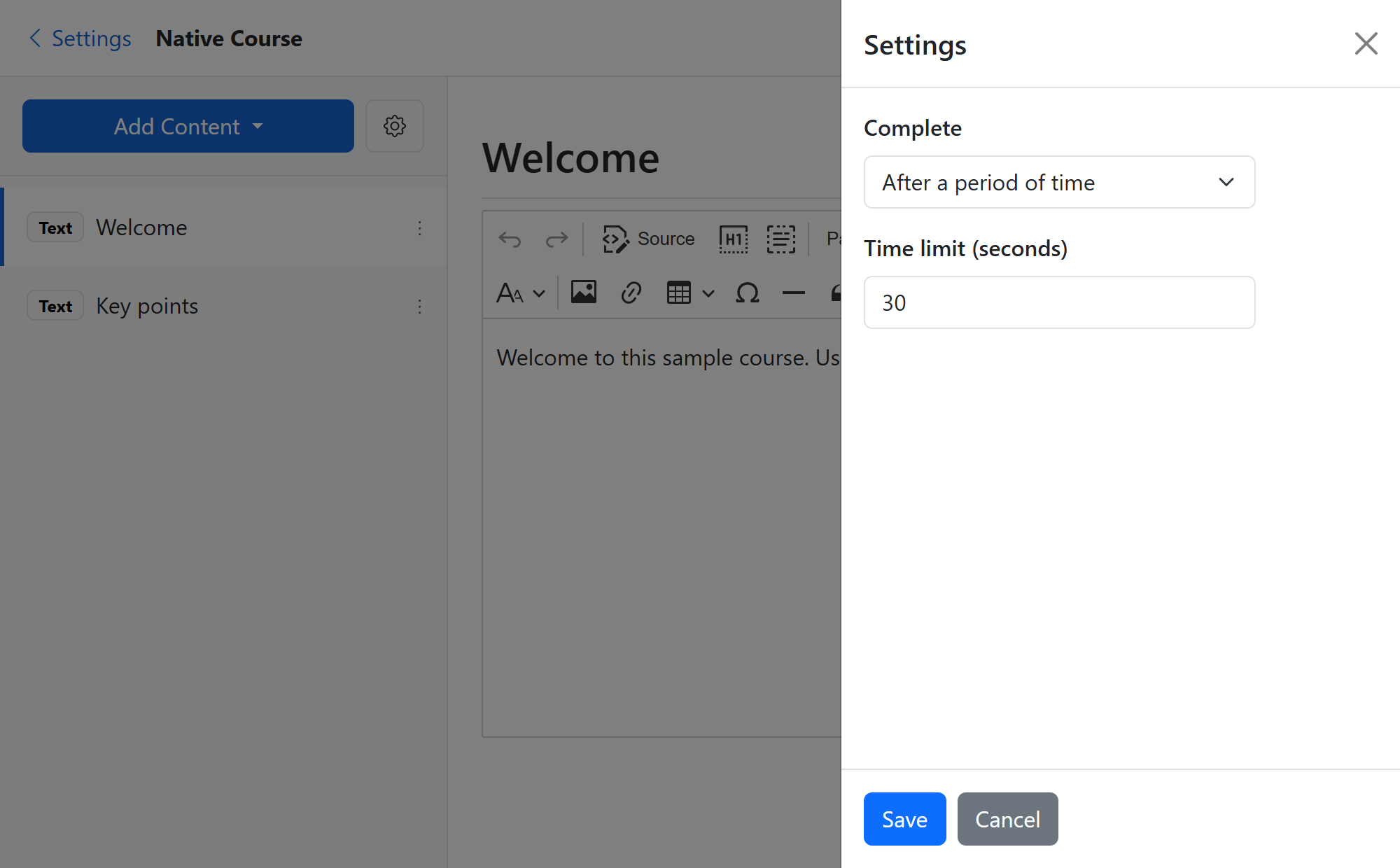
Select Save to apply the setting, or Cancel to close the panel without changing it.
Test and publish
Select Test to open an unrestricted learner preview in a new tab. Preview mode lets you open every page even when Sequential order is selected, and it does not update learner progress or completion records.
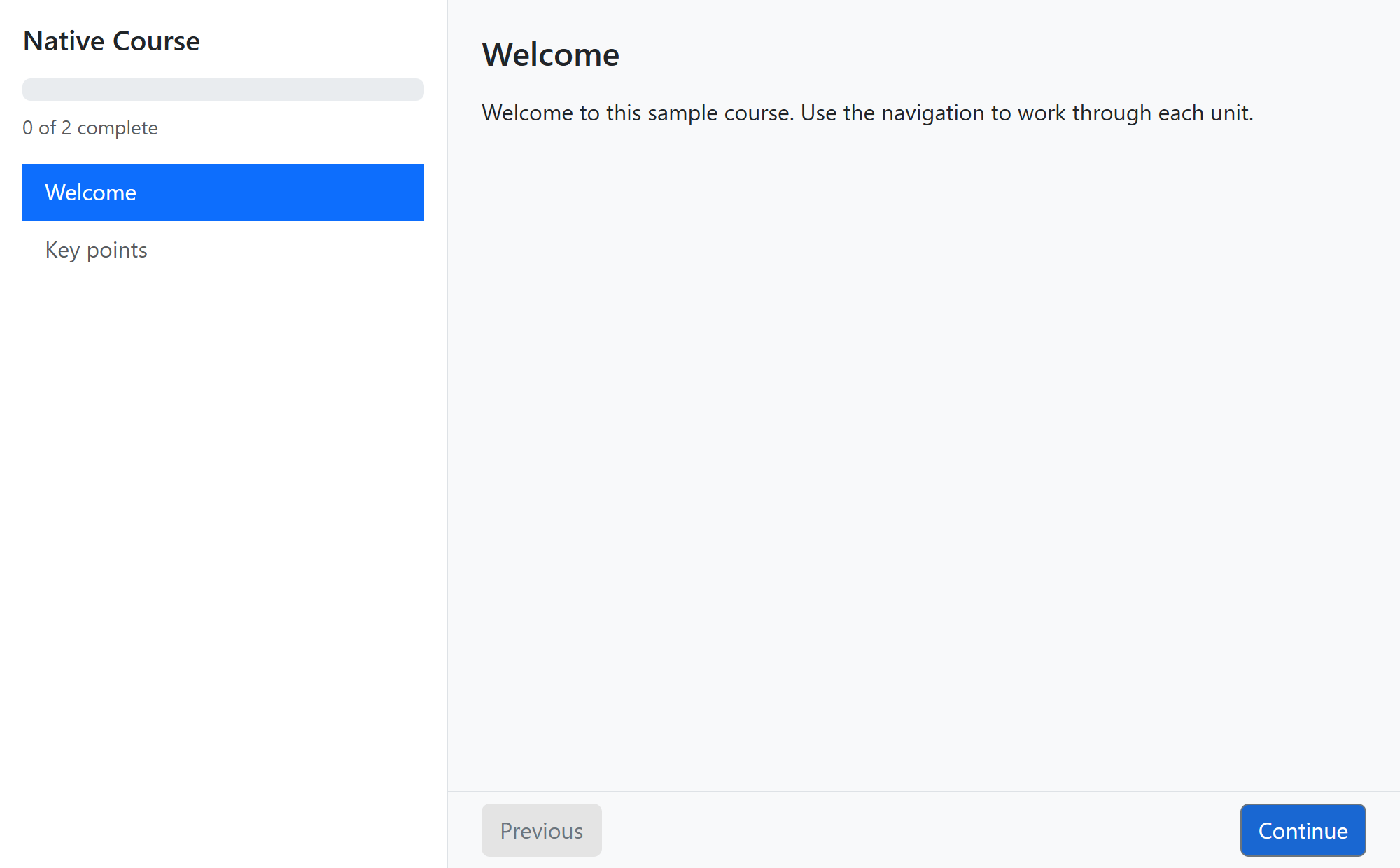
When the course is ready, select Publish. Published Standard Content courses can be launched by assigned learners. You can continue editing a published course; incomplete learners see the latest changes, while learners who already completed it remain complete.
Assign and track the course
Add the course to a package, then assign that package as usual. Learner progress, course completion, reporting, reminders, and certificates use the platform's existing course workflows.